> ## Documentation Index
> Fetch the complete documentation index at: https://docs.futurex.com/llms.txt
> Use this file to discover all available pages before exploring further.
# Configure the VirtuCrypt Intelligence Portal
> Procedural guide to configure VIP for CryptoTunnel, including certificate download and connection testing.
This section describes the following processes:
* Logging in to the VirtuCrypt Intelligence Portal (VIP).
* Creating a new CryptoTunnel to allow connections between the CryptoTunnel Guardian and the Prometheus Proxy defined by the VIP user.
* Downloading a PKCS #12 client TLS connection certificate for the customer Prometheus instance.
## Log in to the VIP
Log in at [**https://vip.virtucrypt.com/login**](https://vip.virtucrypt.com/login) with an account identity that is authorized to access the **CryptoTunnel** and CryptoVerse services in your VIP account.
## Create a CryptoTunnel
Perform the following steps to create a CryptoTunnel for the connection between the CryptoTunnel Guardian and the Prometheus Proxy:
If you set up Advanced Metrics for your VIP account, you have at least two CryptoTunnels. One for the service you are using and another one for the metrics related to that service.
Select **CryptoTunnel** in the services list.
Select **\[ Add CryptoTunnel ]** at the top of the page.
Configure the CryptoTunnel, selecting **Advanced Metrics** in the **Service** drop-down menu, as shown in the following image:
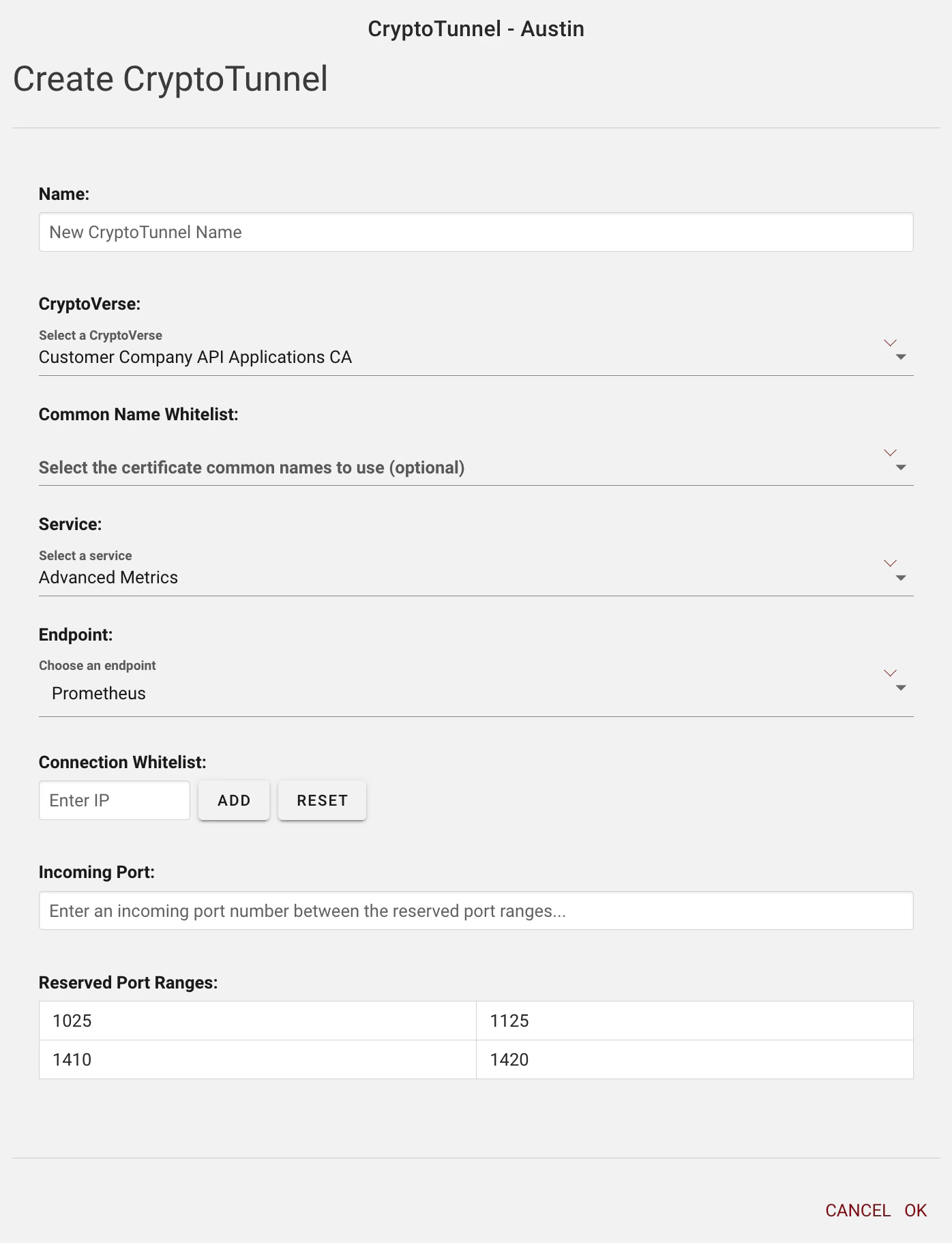 CryptoVerse is the company-specific application that CA uses to verify clients.
Endpoint is the destination that the CryptoTunnel Guardian connects to after proxying users.
Select\*\*\[ OK ]\*\*.
The new CryptoTunnel should be listed now in the CryptoTunnel Management menu.
## Enable the CryptoTunnel
Perform the following steps to enable the CryptoTunnel:
In the **CryptoTunnel Management** menu, expand the new CryptoTunnel by selecting the down arrow on the far right.
Select **\[ Enable ]**.
## Download a PKCS #12 client certificate
Perform the following steps to download a PKCS #12 client TLS connection certificate for the customer Prometheus instance:
Go back to the home page of your VIP account.
Under **Services**, select **CryptoVerse**.
Expand the company-specific applications CA by selecting the down arrow on the far right.
Select **\[ Generate PKI ]**.
Enter a **Name** and **Password** for the PKI, and select **\[ OK ]**.
Expand the PKI you just generated to display information about the certificate. You should see details similar to the following image:
CryptoVerse is the company-specific application that CA uses to verify clients.
Endpoint is the destination that the CryptoTunnel Guardian connects to after proxying users.
Select\*\*\[ OK ]\*\*.
The new CryptoTunnel should be listed now in the CryptoTunnel Management menu.
## Enable the CryptoTunnel
Perform the following steps to enable the CryptoTunnel:
In the **CryptoTunnel Management** menu, expand the new CryptoTunnel by selecting the down arrow on the far right.
Select **\[ Enable ]**.
## Download a PKCS #12 client certificate
Perform the following steps to download a PKCS #12 client TLS connection certificate for the customer Prometheus instance:
Go back to the home page of your VIP account.
Under **Services**, select **CryptoVerse**.
Expand the company-specific applications CA by selecting the down arrow on the far right.
Select **\[ Generate PKI ]**.
Enter a **Name** and **Password** for the PKI, and select **\[ OK ]**.
Expand the PKI you just generated to display information about the certificate. You should see details similar to the following image:
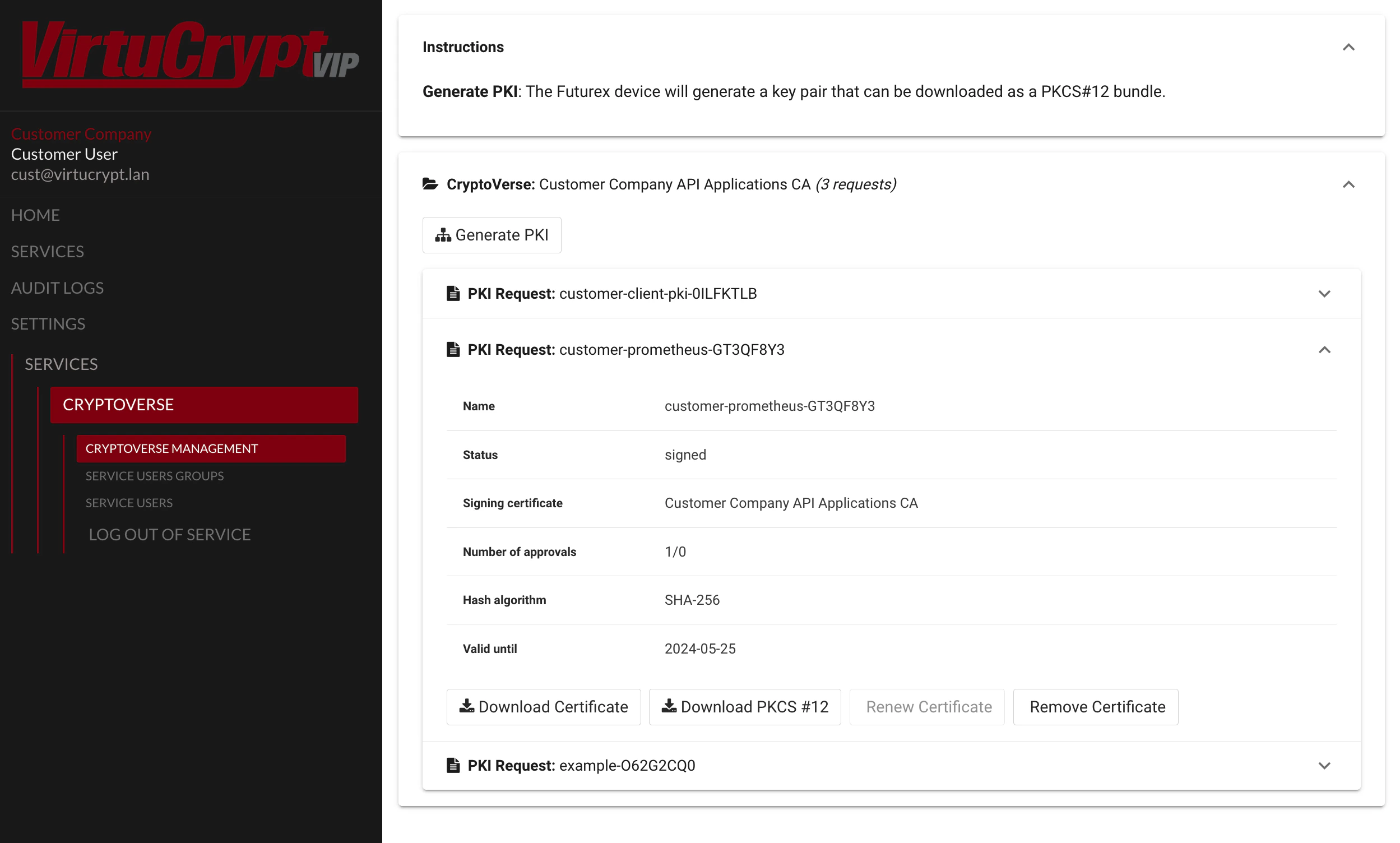 Select\*\*\[ Download PKCS #12 ]**, enter the PKCS #12 password, and select**\[ OK ]\*\*.
Choose where you want to save the PKCS #12 file locally.
## Test the connection
To test the connection to the Advanced Metrics endpoint, run the following **cURL** command to confirm that you can successfully connect to your Advanced Metrics endpoint by using the TLS certificates in the PKCS #12 file:
```Plaintext wrap theme={null}
curl -k 'https\://us01crypto01test.virtucrypt.com:3126/api/v1/query' --cert-type P12 --cert Test\_App-Y96S6OJG.p12\:safest --data-urlencode 'query=ct\_instance\_service\_latency\_ms\{}' | jq
% Total % Received % Xferd Average Speed Time Time Time Current
Dload Upload Total Spent Left Speed
100 400 0 358 100 42 2546 298 --:--:-- --:--:-- --:--:-- 2962
\{
"status": "success",
"data": \{
"resultType": "vector",
"result": [
\{
"metric": \{
"\_\_name\_\_": "ct\_instance\_service\_latency\_ms",
"company\_name": "Futurex Demo Applications",
"host": "austestcryptoguard02",
"instance": "austestcryptoguard02-exporter:8000",
"job": "vc-monitor",
"region": "us-central-1",
"tunnel\_name": "testapp1-VirtuCrypt Demo-1961"
},
"value": [
1686941969.131,
"0"
]
}
]
}
}
```
Select\*\*\[ Download PKCS #12 ]**, enter the PKCS #12 password, and select**\[ OK ]\*\*.
Choose where you want to save the PKCS #12 file locally.
## Test the connection
To test the connection to the Advanced Metrics endpoint, run the following **cURL** command to confirm that you can successfully connect to your Advanced Metrics endpoint by using the TLS certificates in the PKCS #12 file:
```Plaintext wrap theme={null}
curl -k 'https\://us01crypto01test.virtucrypt.com:3126/api/v1/query' --cert-type P12 --cert Test\_App-Y96S6OJG.p12\:safest --data-urlencode 'query=ct\_instance\_service\_latency\_ms\{}' | jq
% Total % Received % Xferd Average Speed Time Time Time Current
Dload Upload Total Spent Left Speed
100 400 0 358 100 42 2546 298 --:--:-- --:--:-- --:--:-- 2962
\{
"status": "success",
"data": \{
"resultType": "vector",
"result": [
\{
"metric": \{
"\_\_name\_\_": "ct\_instance\_service\_latency\_ms",
"company\_name": "Futurex Demo Applications",
"host": "austestcryptoguard02",
"instance": "austestcryptoguard02-exporter:8000",
"job": "vc-monitor",
"region": "us-central-1",
"tunnel\_name": "testapp1-VirtuCrypt Demo-1961"
},
"value": [
1686941969.131,
"0"
]
}
]
}
}
```